BERRY'S TECH GARDEN
welcome to my tech garden!

This is my tech garden. A little place on the internet dedicated to collecting my current tech hyperfixations, oddities, and shell scripts.
about Berry

I'm a 29-year-old health informatics specialist, and a tech enthusiast living in Toronto, ON with my fiancée. I enjoy playing with tech and occasionally writing horror and romance fiction. Sometimes at the same time.I currently own the Microjournal Rev 2.1 and an Alphasmart Neo2.


Microjournal
tutorials!!

Custom Launcher

Reboot Script


Custom Launcher Tutorial
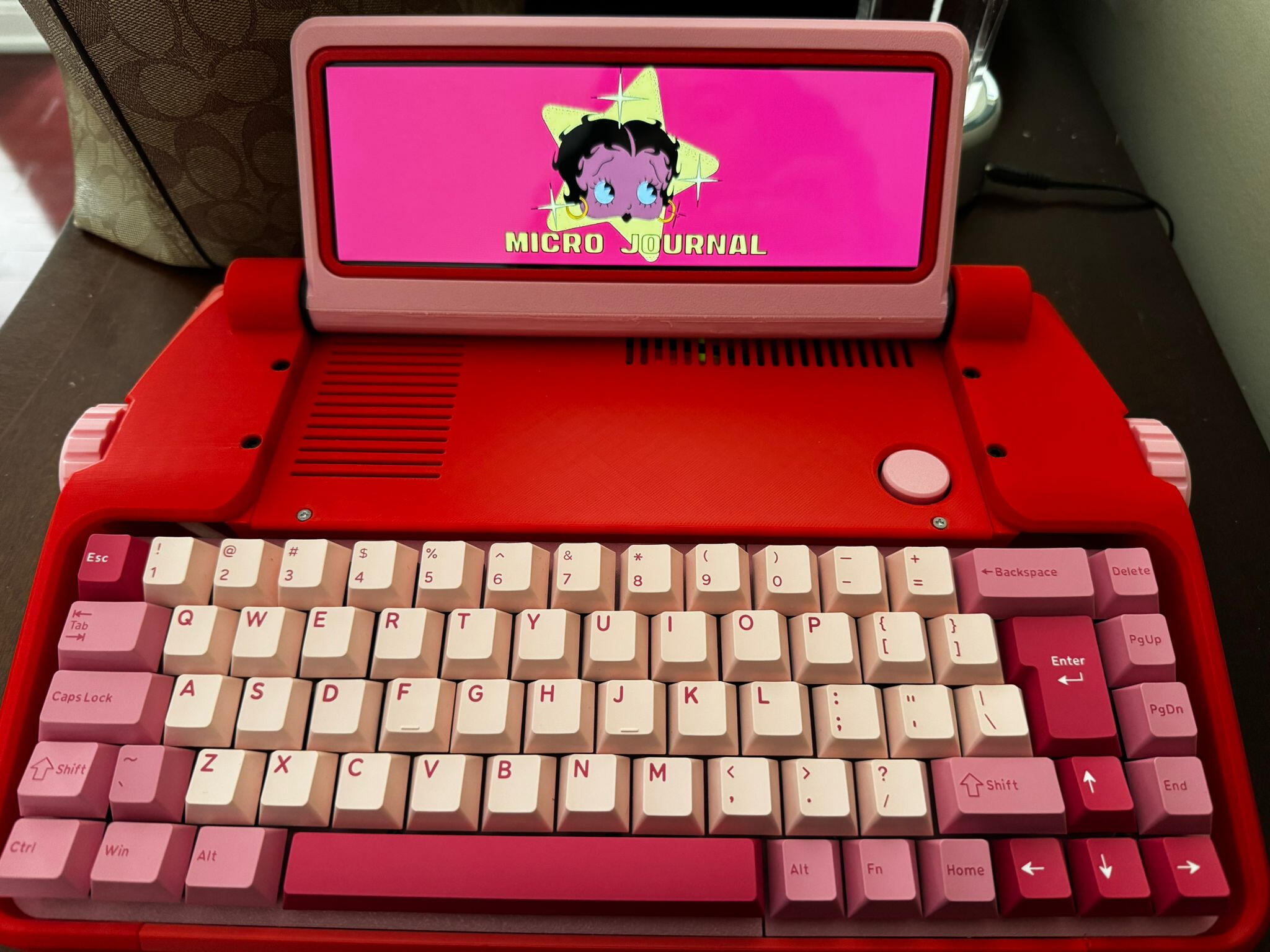
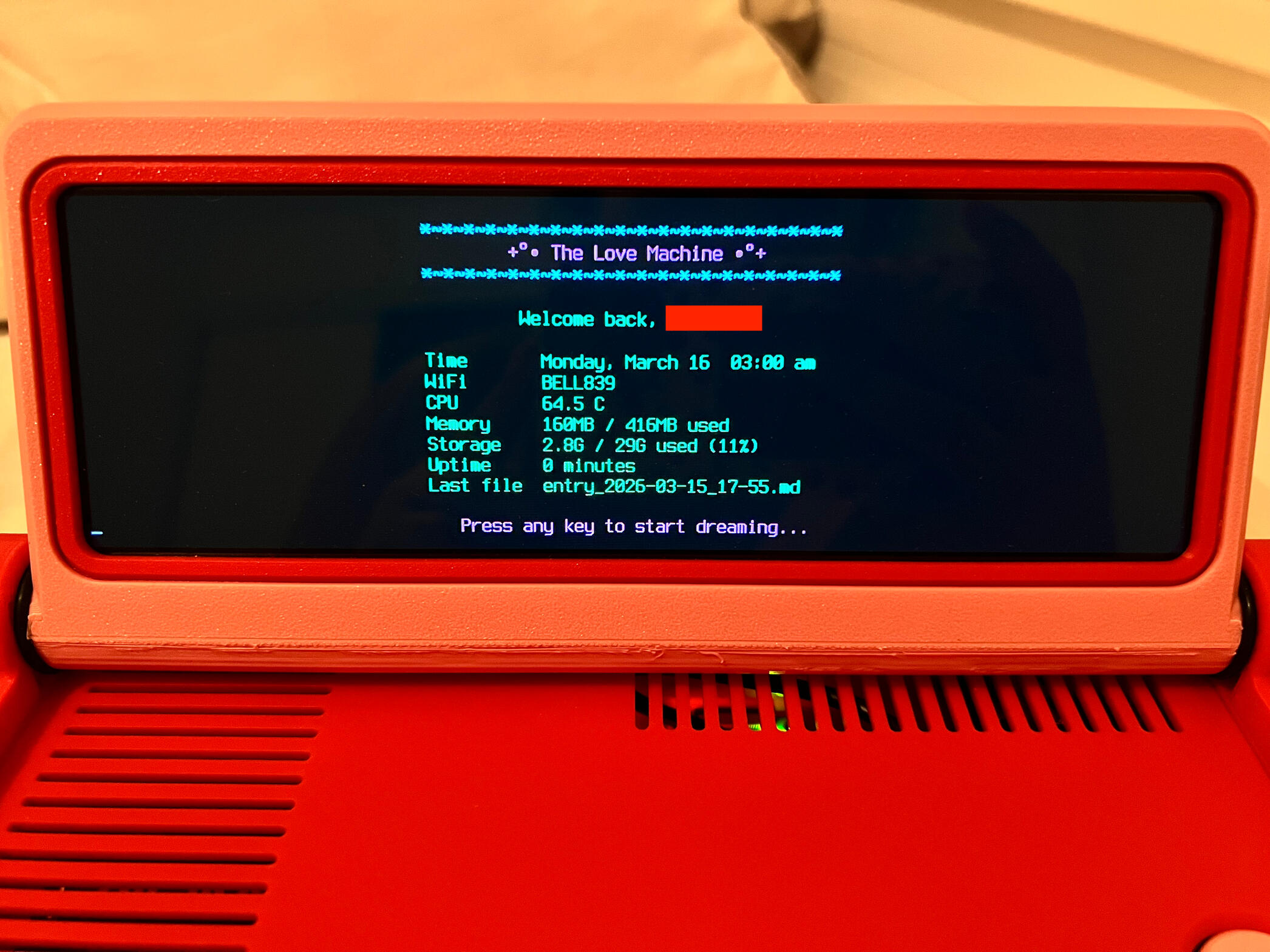
This tutorial will show you how to add a launcher to your Microjournal Rev 2.1. The launcher will include an image that will appear briefly as well as a secondary stats screen which will include:
+ A header
+ A short greeting including your name
+ CPU temperature
+ Wi-fi network
+ Memory (RAM)
+ Storage
+ Date and Time
+ Last File (based on last file opened in /home/microjournal/microjournal/documents)
What You’ll Need:
– Your MicroJournal
– An internet connection
– A launcher image that is 1280x400p to match the dimensions of the Microjournal screen. The image must be turn 90 degrees counter clockwise. I have a few example images that you can use for this tutorial here.
– A basic understanding of Linux and Terminal
– A script editor to personalize the shell scripts. I recommend Visual Studio Code.Step 1: Downloading the Plugins
– We need to download fbi to display your png or jpeg image.Click 'q' to drop into the command line and enter:
sudo apt update
And then:
sudo apt install fbiStep 2: Creating the Launcher Script
You can download the start-mj.sh file that I created to get the results above by clicking here.Transfer the file to your Microjournal using a USB or the file_share.sh script.After you've transferred the start-mj.sh file to your Microjournal, you can move it to the main folder with the below line:mv /home/microjournal/microjournal/documents/start-mj.sh /home/microjournal/microjournalOr you can cut and paste the file: select it in ranger and then click 'Esc' and 'dd' (to cut). To paste the file navigate to /home/microjournal/microjournal/ and then click 'Esc' and 'pp' (to paste).The start-mj.sh file must be in /home/microjournal/microjournal/.Step 3: Creating the Launcher Image
The image needs to be 1280x400p to match the dimensions of the Microjournal's screen and it must be turned 90 degrees counter-clockwise on your computer, prior to being transferred to the Microjournal.I have a folder of demo launcher images that meet these requirements, that you can access here.If you do not use one of the demo images, please remember that your file must be called banner.png and it must be located in /home/microjournal/microjournalTransfer the file to your Microjournal using a USB or the file_share.sh script.After you've transferred the banner.png file to your Microjournal, you can move it in the main folder with the below line:mv /home/microjournal/microjournal/documents/banner.png /home/microjournal/microjournalOr you can cut and paste the file: select it in ranger and then click 'Esc' and 'dd' (to cut). To paste the file navigate to /home/microjournal/microjournal/ and then click 'Esc' and 'pp' (to paste).Step 4: Making the Launcher Script Executable
Now, we need to make the start-mj.sh script executable.
Click 'q' to drop into the command line and enter:
chmod +x /home/microjournal/microjournal/start-mj.shStep 5: Make sure the script is automatically executed at startup
Click 'q' to drop into the command line and enter:
nano ~/.bashrcScroll to the bottom and look for # Startup app - ranger.You should see a line of text under that which does not have a hashtag that is simply ranger or something similar. This is indicating that ranger should be launched at startup.You are going to delete this text and replace it with /home/microjournal/microjournal/start-mj.sh.Save changes and exit.Step 6: Make sure that the device knows to open png (and jpeg) files with fbi
Click 'q' to drop into the command line and enter:
nano ~/.config/ranger/rifle.confAdd this to the bottom of the file:
ext png = fbi --nonverbose "$@"
ext jpeg = fbi --nonverbose "$@"After you've added that, save your changes.Final Step: Restart the Microjournal and see if your launcher appears!
Click 'q' and enter:
sudo reboot nowIf everything went off without a hitch, you should see your image and then a stats screen.
Reboot Script Tutorial
This tutorial will explain to you how to create a simple reboot script that you can easily click to immediately reboot your Microjournal.
Step 1: Create the script file
Click 'q' to drop into the command line and enter:
nano /home/microjournal/microjournal/reboot.sh
In the file enter:
sudo reboot nowSave your changes and exit.Alternatively: you can download the reboot.sh file I've already created from here.Transfer the file to your device using the file_share.sh command or USB.Move the reboot.sh file to /home/microjournal/microjournal by entering:mv /home/microjournal/microjournal/documents/reboot.sh /home/microjournal/microjournalYou can also cut (Esc+dd) and paste (Esc+pp) to move the file.Step 2: Make the command executable.
Click 'q' to drop into the command line and enter:
chmod +x /home/microjournal/microjournal/reboot.shThat's it! After following these steps, you should be able to reboot your Microjournal by clicking reboot.sh the same way that you shutdown the Microjournal by clicking shutdown.sh.